| Item | Explanation |
| When loading a cancellation, follow these steps. | |
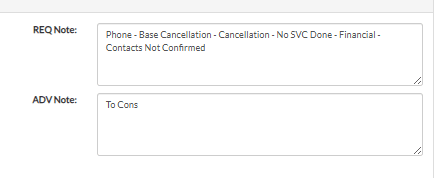
Step 1 | Select Alteration Tab and ensure Lead Request is selected. As you select the options in dropdown available the note will be autogenerated. |
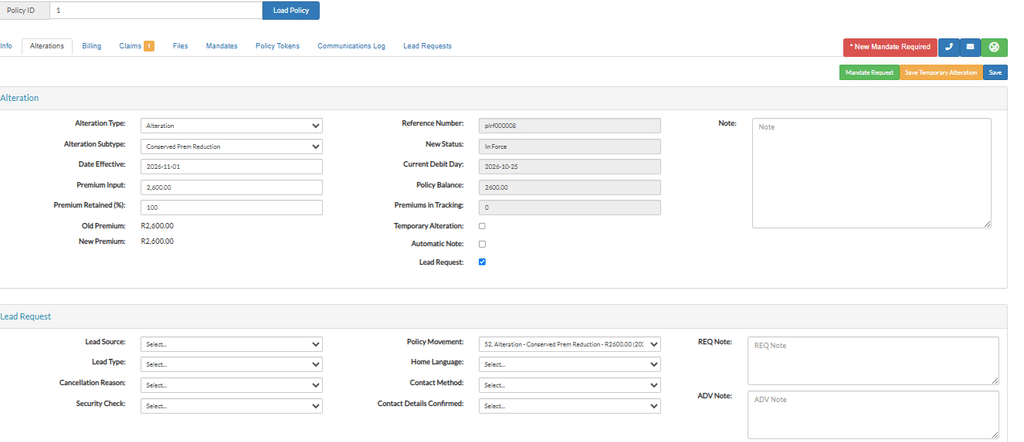
Step 2 | Under Lead Request select the Lead Source |
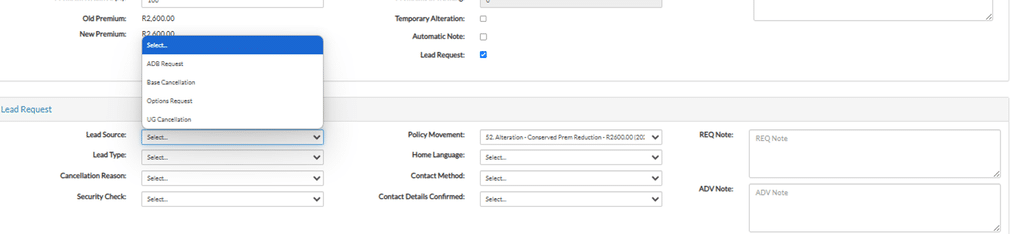
| ADB request – to add ADB to the policy Base Cancellation – To cancel the policy. When this option is selected, the policy will automatically be placed on pending conservation. Options Request – Where the client wants to lower the premium or place the policy on hold UG Cancellation – To cancel the upgrade only. |
Step 3 | Under Lead Request select the Lead Type |

| Cancellation Intent unclear for emails to use, if they are unsure if the client wants to cancel the upgrade or the policy. |
Step 4 | Under Cancellation Reason select the correct reason |
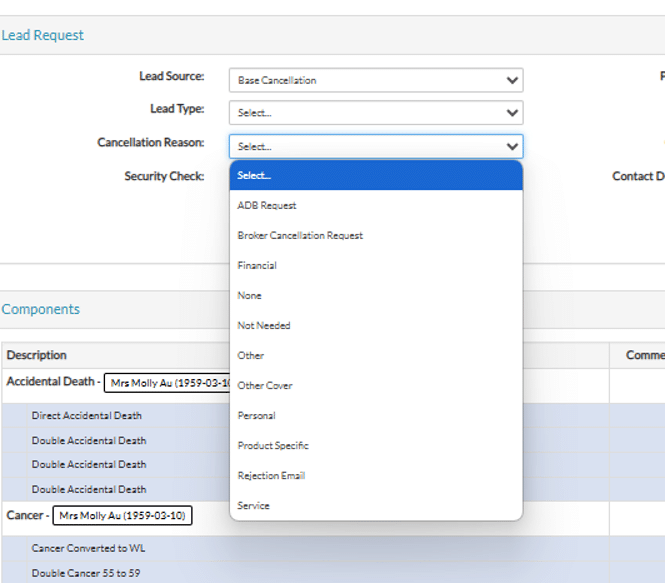
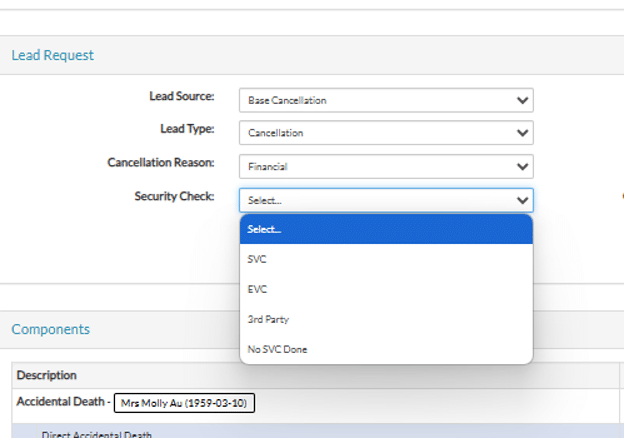
Step 5 | Confirm the type of security check done |
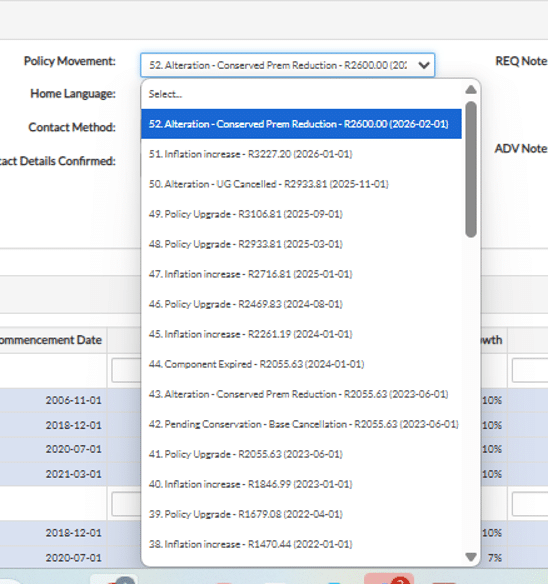
Step 6 | Select the current active movement to place the policy on pending. |
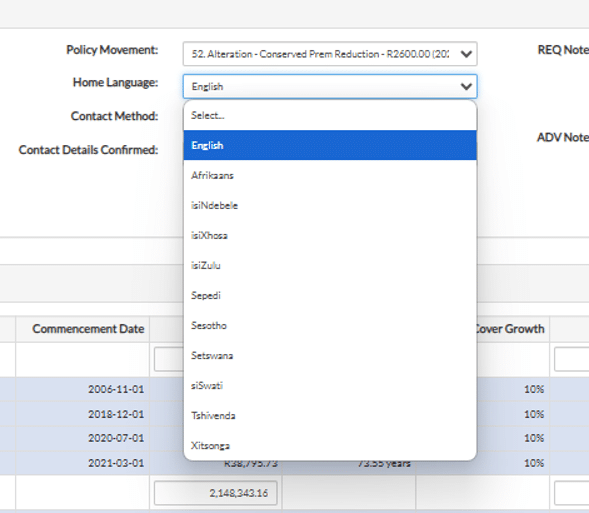
Step 7 | Select the correct home language |
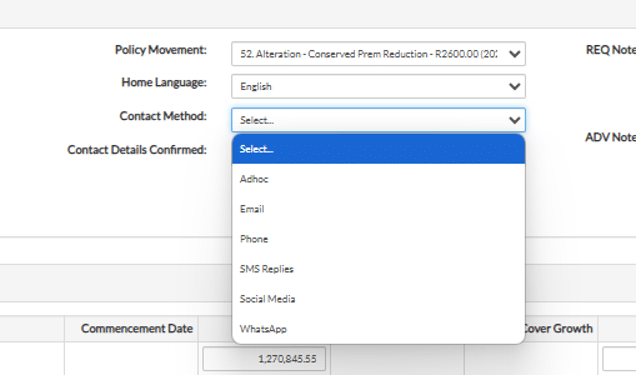
Step 8 | Select the type of contact you have had with the client |
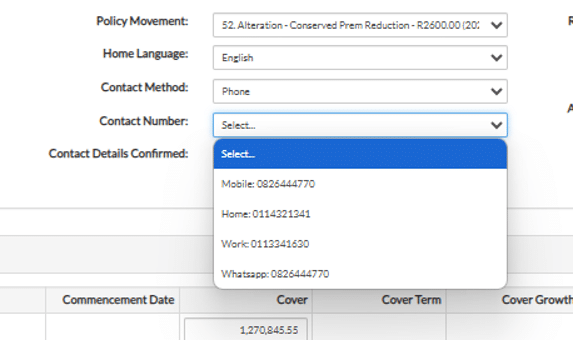
Step 9 | If it was a phone call you select the number used, if it was an email you select an email address |
Step 10 | Confirm if you confirmed the contact details. |
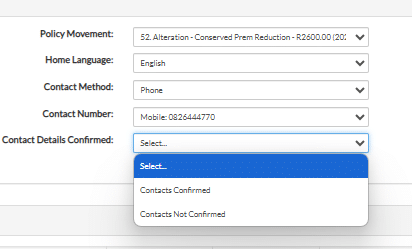
Step 11 | Check if the autogenerated note is correct and make adjustments where necessary. |
Step 12 | Check the alteration type and subtype. Confirm the effective date is correct. |
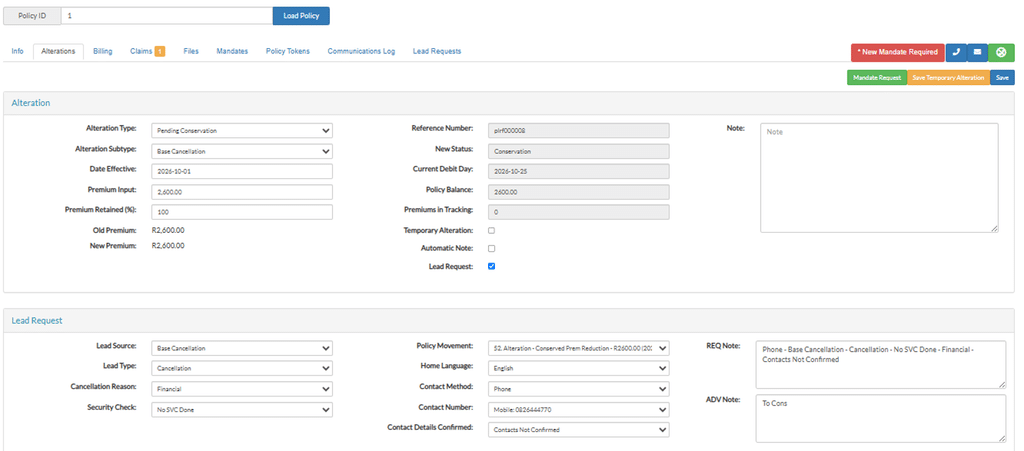
Step 13 | Save |
