To get access to Pinotage, your supervisor will contact the Actuaries with your email address.
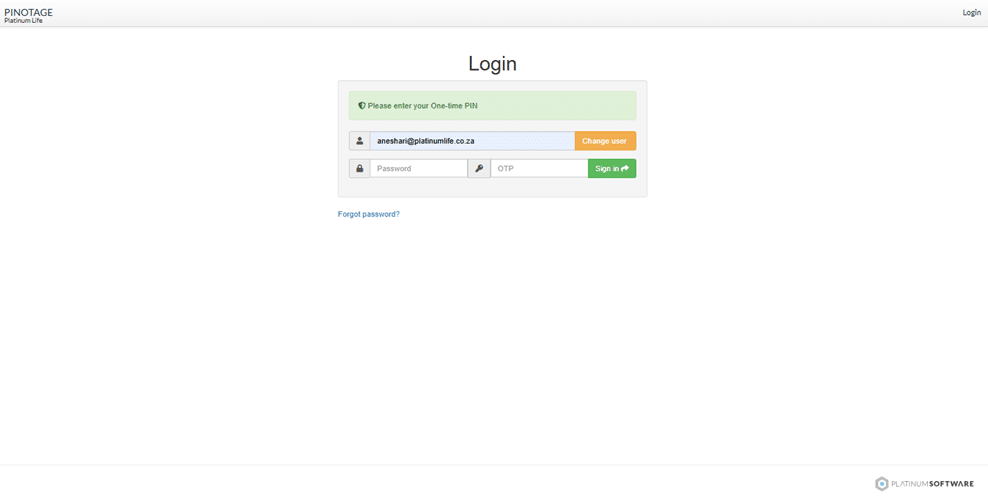
Once permission to access has been granted, you will need to log in.
Put following link in to your chrome browser address bar. https://pinotage.platlife.cloud/?#/grape-ui/login
Pinotage requires a 2 factor authorisation for login.
Follow the following steps to set up the Authenticator
1. On Google Chrome, install the Authenticator extension on your browser: Authenticator
2. Once installed, login to Pinotage as usual, when directed to the Account Security Page, click the Enable 2FA button
Your username is your email address.
Your password is one that you will set.
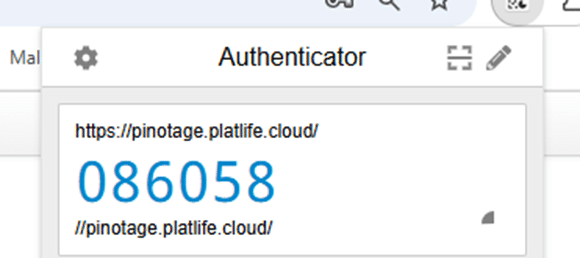
3. In the right-hand corner, click the extension you’ll see the newly added Authenticator extension

4. Click on the Authenticator extension and scan the code.
5. Once scanned, you’ll see the OTP after you press the extension again Some important information to note: https://authenticator.cc/docs/en/chrome-issues
Your OTP is generated by the authenticator.